Pick a Mode
Start with Recommended. Use High Quality for detail, or Max Compression when the original file is too large.
Free Vision Cube GIF Tool
This free GIF tool crops and compresses GIFs or short videos into 240x240 animations for Vision Cube, HelloCubic, and other square IPS displays. Files are processed in your browser.
Start with Recommended. Use High Quality for detail, or Max Compression when the original file is too large.
Choose a GIF or short MP4/WebM/MOV video from your phone or computer. The first 5 optimizations are free.
Download the device-ready version, then upload it to your display through the Vision Cube control page.
Step 1: choose a compression strength. Step 2: upload your GIF or short video.
Recommended is best for most files. Switch modes when you need a smaller file or a cleaner preview.
Use the tool 5 times for free. After that, enter your email to unlock unlimited conversions, better GIF settings, and display ideas.
Best for anime loops, character stickers, pixel art, and downloaded GIFs.
Click or drag GIF hereBest for short edits or clips you want to turn into a device-ready loop.
Click or drag MP4, WebM, or MOV hereOnce your animation is optimized, send it to your Vision Cube and turn your favorite character loops, edits, and display-ready art into a glowing desk display.
Shop Vision Cube →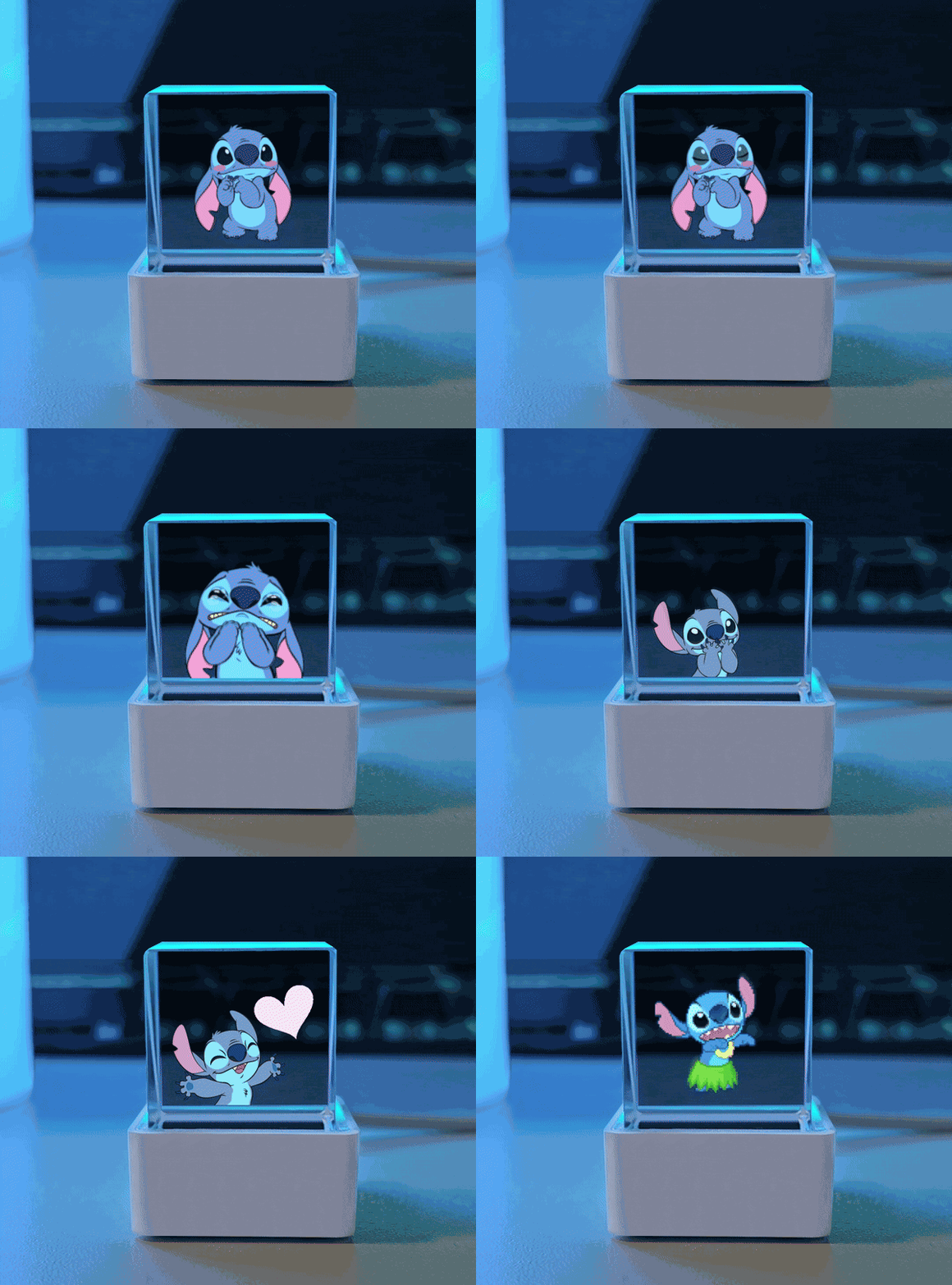
Choose High Quality, Recommended, or Max Compression depending on how small the final file needs to be.
Every file is centered and cropped for square Vision Cube style displays.
Frame sampling and color reduction help shrink large GIFs while keeping the animation recognizable.
Your file is processed in your browser. For best results, start with clips under 10MB.
This mode balances detail and file size. If the file is still too large, switch to Max Compression.
Choose High Quality when the animation has faces, text, thin lines, or small character details.
Keep videos under 10 seconds when possible. Shorter clips convert faster and loop better.
Animations with dark or black backgrounds usually blend best with the holographic display effect.
Connect to the Vision Cube WiFi control page, choose a display-ready GIF, upload it through the browser, and select it for playback on the device.
Short 240x240 GIFs usually work best. Start with clips under 10MB, use the recommended GIF Tool mode first, and switch to max compression if uploads are slow.
Vision Cube is best for desks, shelves, and gifts. Vision Cube Ultra is designed for a larger display presence and more immersive collector setups.
Yes. You can upload GIFs, images, or fan art that you own or have permission to use through the built-in WiFi web portal.
Your cart is empty
Shop Now


